
3.2 KiB
Galton
Let your downloads fall into the right place
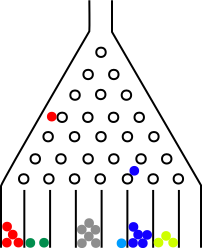
Galton sorts your new downloads based on a set of rules.
Installation
Pre-build releases can be downloaded from the releases page.
Alternatively you can build it yourself using either nix build or
cargo build.
Usage
galton --config <config> watch <download directory>
You can also apply your rules to an existing file using
galton --config <config> file <path>
Rules
Each rule can have 3 different match options containing a regex:
name: the filename of the fileurl*: the source url of the filereferrer*: the referrer of the file
*: See the "Url and referrer" section for more information and restrictions.
And two action options:
move: directory to move the file into, will be created if necessaryrename: rename the file
Actions options can refer to the following data extracted from the rule to dynamically set the target directory and name.
- Any named regex capture group
mtime: unix timestamp of the downloaded filexpath('....')an xpath expression to match on the download file
Multiple rule sections can be configured, the first matching rule will be used.
Examples
Move a download based on the filename
[[rule]]
name = ".+\\.(stl|3mf)" # note that we need to double the \\ for to escape regex
move = "~/Printables"
Move a file based on where it's downloaded from.
[[rule]]
referrer = "https://www.thingiverse.com/model/(?<model>.+)"
move = "~/Printables/$model"
Rename a file when moving
[[rule]]
name = "\\.(csv|CSV)"
url = "https://www.paypal.com"
move = "~/Downloads/Paypal Statements/$mtime.csv" # $mtime is set to the unix timestamp
Rename based on an XPath expression
[[rule]]
name = ".+\\.(lss)"
move = "~/Livesplits/${xpath('//GameName/text()')}"
rename = "${xpath('//CategoryName/text()')} - ${xpath('//Metadata/Variables/Variable[contains(@name, \"Subcategory\")]/text()')}.lss"
Url and referrer
Galton uses the standard user.xdg.origin.url and user.xdg.referrer.url
extended attributes to determine the download url and referrer.
However browsers currently don't set the attributes on download files, firefox users can use originfox as a workaround.
Lastest download symlink
To make it easy to open the file you just downloaded, galton can be configured to automatically create a symlink to the new location of the file.
[watch]
symlink = "~/Downloads/last"
Remove duplicate downloads
Galton can also be used to clean up duplicate downloads, when enabled, it will check for any existing file with the same contents in the target directory and delete the newly download file if a duplicate is found.
[watch]
remove-duplicates = true
Notifications
Since having the downloaded file being moved or deleted right after downloading makes the default desktop notifications less useful (e.g. you can't open the newly download file trough it). Galton supports sending it's own notifications whenever it performs an action. Providing an easy way to interact with the file.